Activity 06
NLP for GIS
| Assigned | Due | Submit |
|---|---|---|
Apr 7, 2026 |
Apr 14, 2026 |
Introduction and context
In this activity, you’ll geocode historical address data. In this case, you’ll work with data from the 19th century American children’s book trade directory. The directory contains 2,600 entries documenting the activity of individuals and firms involved in the manufacture and distribution of childrens books in the United States chiefly between 1821 and 1876. It’s searchable online, and—more importantly for us—you can download the data from the University of Pennsylvania’s Scholarly Commons.
The major difference between this activity and previous ones is that you’ll be using a different geographic information system: QGIS.

QGIS is a powerful, free, and open-source GIS software. You can do lots of the things in QGIS that you can do in ArcGIS Pro, including sophistiated vector and raster visualization/analysis.
QGIS is available on the Data Lab computers. Part of this activity will involve teaching yourself how to use it—now that you know your way around ArcGIS Pro, the learning curve for this will be less steep.
If you’re unsure how to do something in QGIS—for example, adding vector data—your first step should be to just Google it (e.g., qgis load vector data). We also have a guide from the Leventhal Center on getting started with QGIS, which may come in handy. There are also a ton of resources on getting started with QGIS from Tufts.
Set up your workspace
You know what works for you. Set up a workspace for this activity!
Open QGIS
Open QGIS by typing “QGIS” into the search bar at the bottom left-hand side of the screen. Click the application when it appears.
When it opens, you’ll be invited to start a “New empty project.” Go ahead and double-click it:
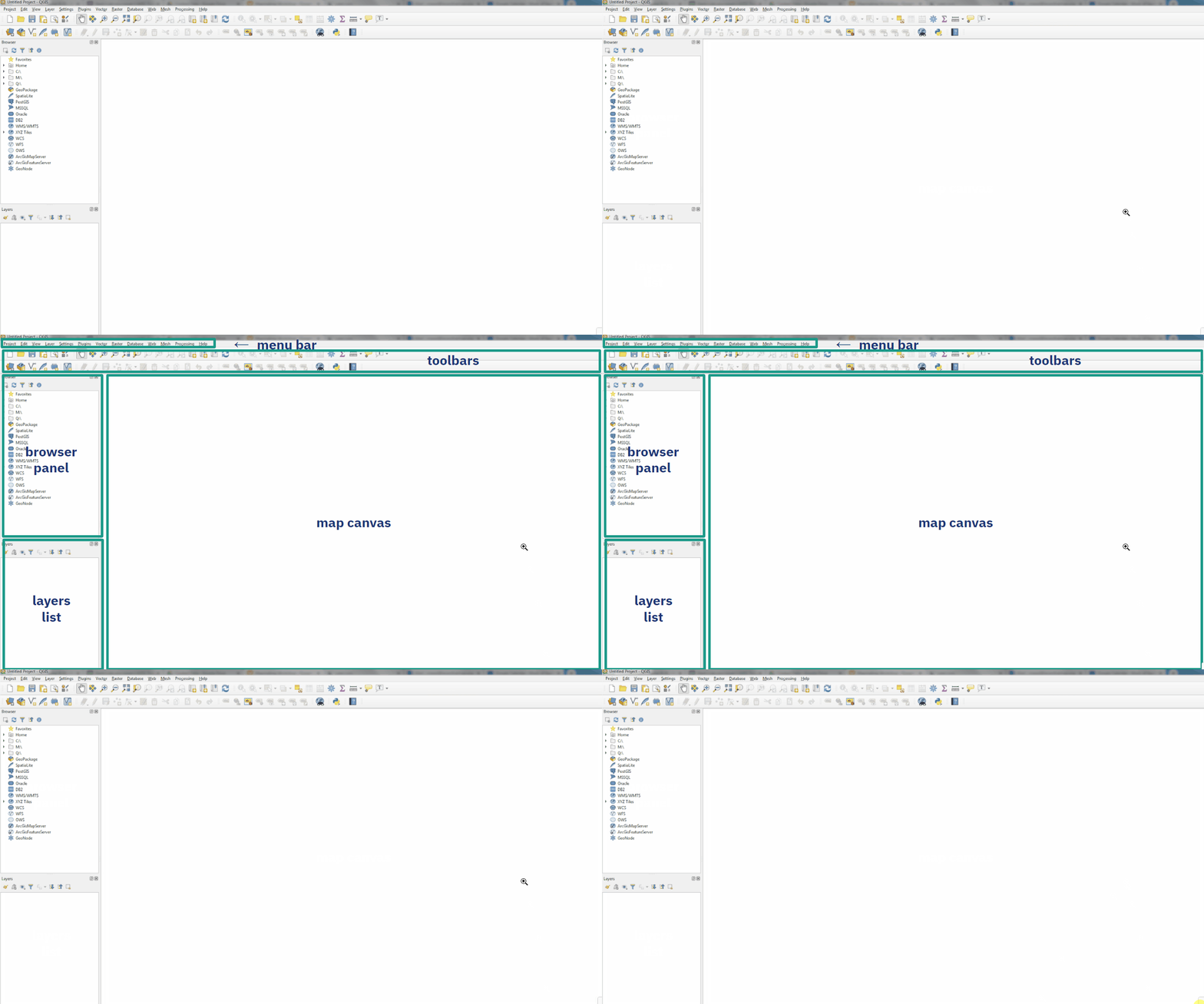
Once you’re in QGIS, the interface should look fairly familiar. Here are the main components:
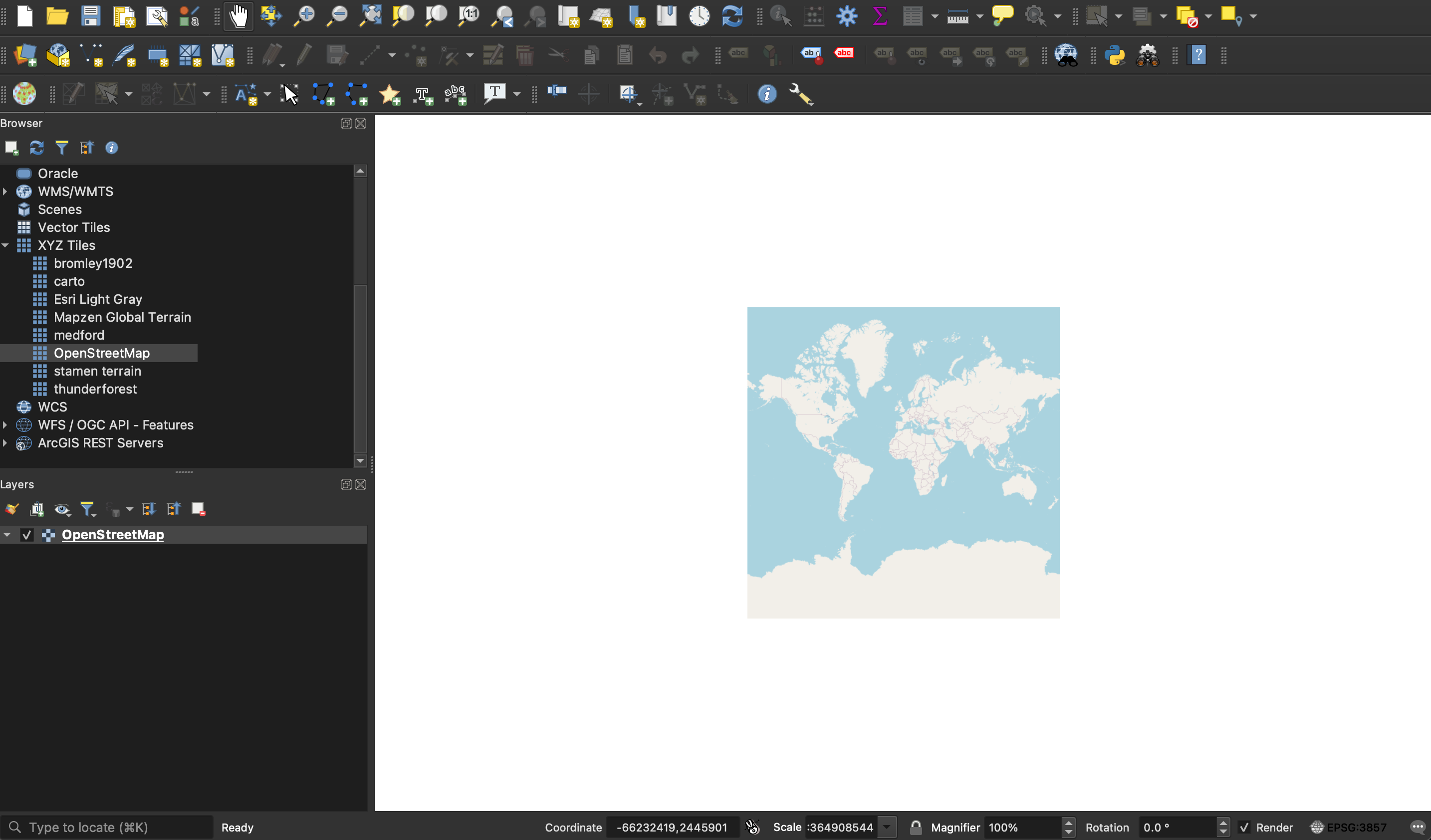
In the Browser panel, double-click “XYZ tiles” and then double-click “OpenStreetMap”. This should add an OpenStreetMap base map layer to your map canvas, and a layer will appear in the layers list underneath the browser panel:
Now that you’ve got a working project, save the file in your workspace before moving on to the next step.
Download the data
Get the data of the 19th century American children’s book trade directory from the University of Pennsylvania Scholarly Commons: https://repository.upenn.edu/entities/dataset/16705c2f-023b-495e-baf4-dee805eae59f
You should download both 0-dateaddr.xlsx and 1-heading.xlsx.
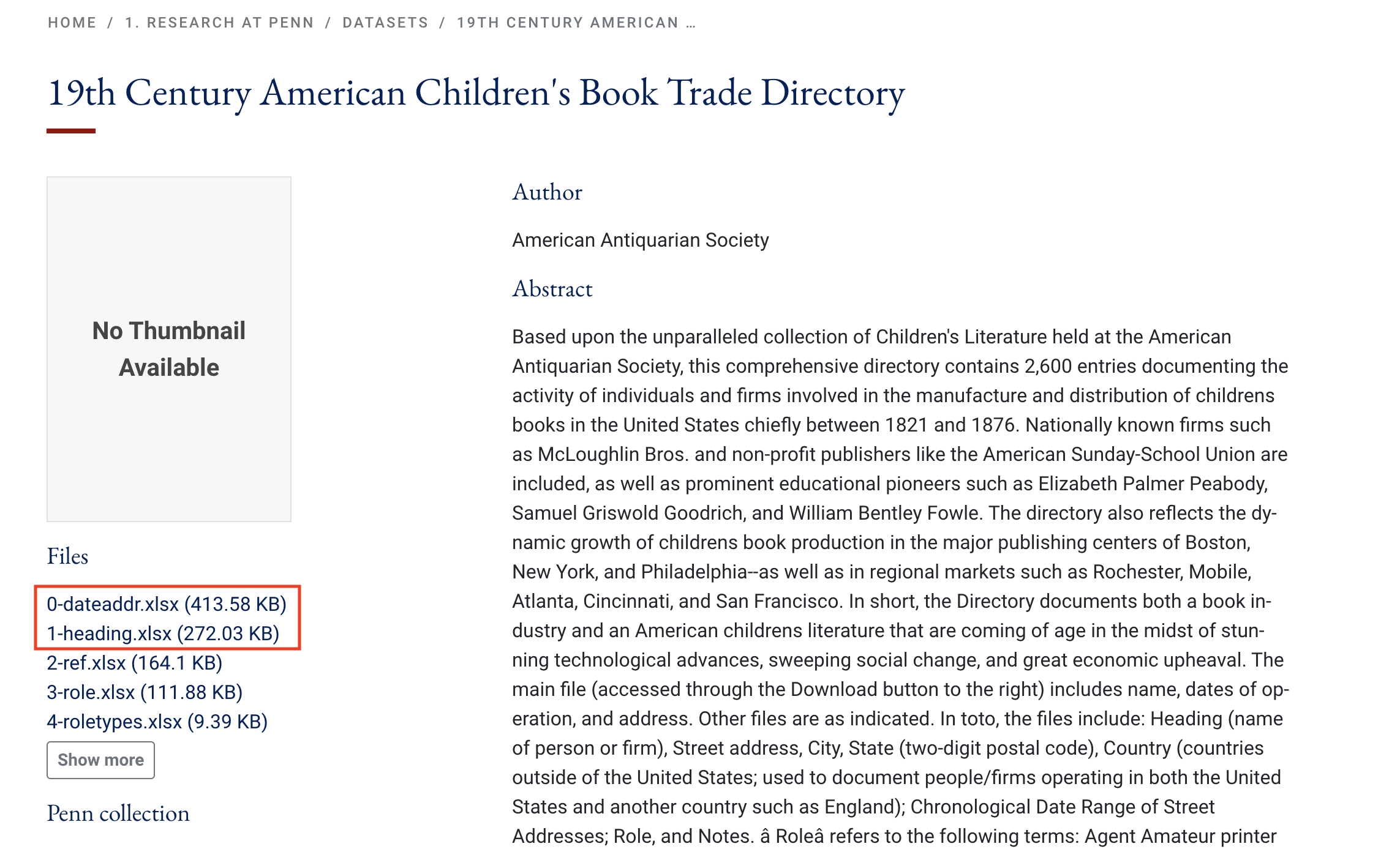
Take a beat to open the data in Microsoft Excel. Consider: which one of these files would you want to geocode?
Pre-processing
Perhaps obviously, we’re going to geocode the 0-dateaddr.xlsx file, because it contains well-structured address data. But before you geocode this data, it needs a little bit of pre-processing.
There are thousands of records in this spreadsheet. Even a fraction of this will take a while to geocode, so let’s focus on a smaller geography, like the state of Massachusetts. To do that we’re going to filter the spreadsheet and exclude all records that aren’t located in the state of Massachusetts.
- In Microsoft Excel, open the
0-dateaddr.xlsxfile - In the “Home” tab, click “Filter”—you should see drop-down arrows appear next to all the fields
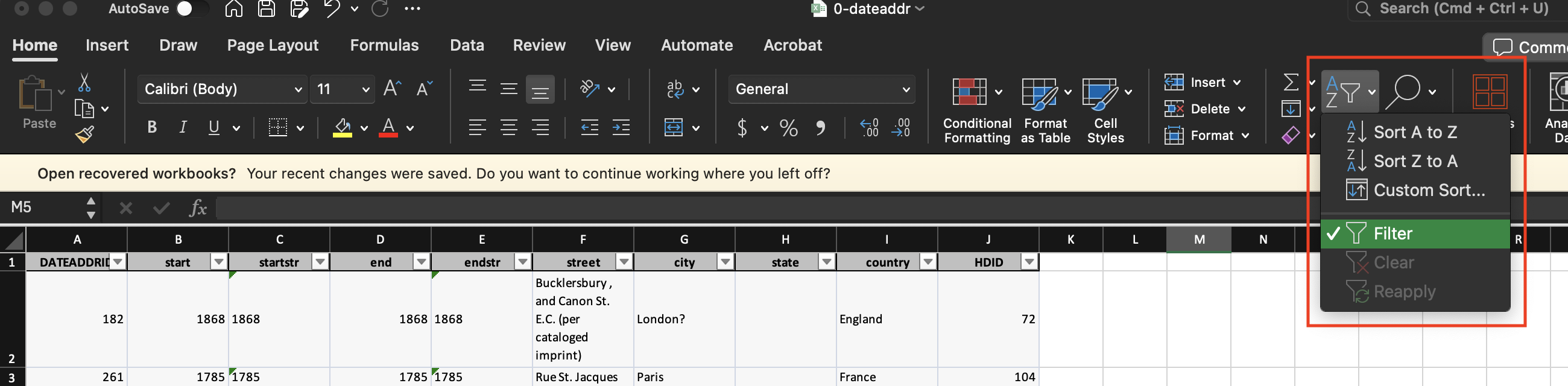
- Click on the drop-down arrow by the
statefield ➡️ uncheck “Select All” ➡️ scroll down to “MA” and check it - Open a new spreadsheet and save it as
directoryAddresses_MA. Make sure to save it as a.csv! - In
0-dateaddr.xlsx- select all the data with
ctrl+Aor another selection method of your choosing - copy all the data with
ctrl+Cor right-click ➡️ “Copy”
- select all the data with
- In
directoryAddresses_MA.csv, click on the cell in the most upper left part of the spreadsheet and paste the data withctrl+Vor right-click ➡️ “Paste” - Save your spreadsheet
Now we have csv data exclusively filtered for Massachusetts—a little more manageable for this activity.
Geocoding children’s book publishers
Geocoding—the process of turning descriptive address information into spatial data—requires at least two points of reference:
- A topologically sound network of vector data that ideally includes things like parcel boundaries, streets, and building footprints
- Descriptive information associated with that topological network, e.g., a gazetteer
Thanks to OpenStreetMap, Nominatim, and MMQGIS, we have all of these things built into QGIS for free. That’s why we’re using this instead of ArcGIS Pro: in order to geocode addresses in ArcGIS Pro, we need to pay for it. Instead of spending thousands of our limited ArcGIS Online credits on a learning exercis, let’s learn a new software while we geocode for free.
OpenStreetMap, Nominatim, and MMQGIS
This week’s activity hinges on three pieces of software. All open source!
You already know what OpenStreetMap (OSM) is from the parking lot cemetery assignment: it’s a free and open-source base map, the “Wikipedia of maps,” because anybody can edit it. This serves as our topologically sound network of vector data as well as our descriptive information or gazetteer.
- Nominatim is a free and open-source tool for geocoding with OSM data. You could geocode with Nominatim in ArcGIS Pro, but it requires writing bespoke code into the Python console.
- MMQGIS is a QGIS plugin for manipulating vector map layers in Quantum GIS: CSV input/output/join, geocoding, geometry conversion, buffering, hub analysis, simplification, column modification, and simple animation. It comes installed with QGIS in all the Data Lab computers, but if you don’t see it in the toolbar at the top of your screen, it’s really easy to install (
Plugins➡️Manage and install plugins➡️ search formmqgis, click it, and click “Install”).
Running the geocoder
To geocode the data, navigate to the menu bar at the top of the screen and click “MMQGIS” ➡️ “Geocode” ➡️ “Geocode CSV with Web Service.” MMQGIS should appear on the upper right-hand side.
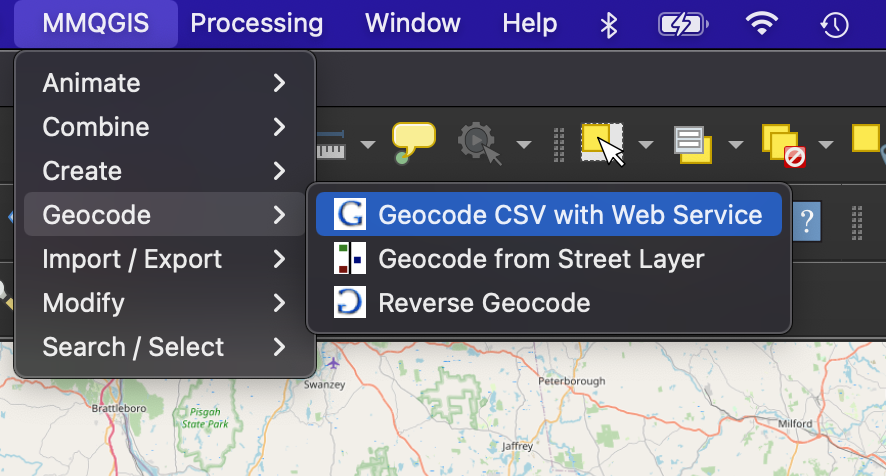
In the geocoding dialog that opens, you should see a dialog box like this:
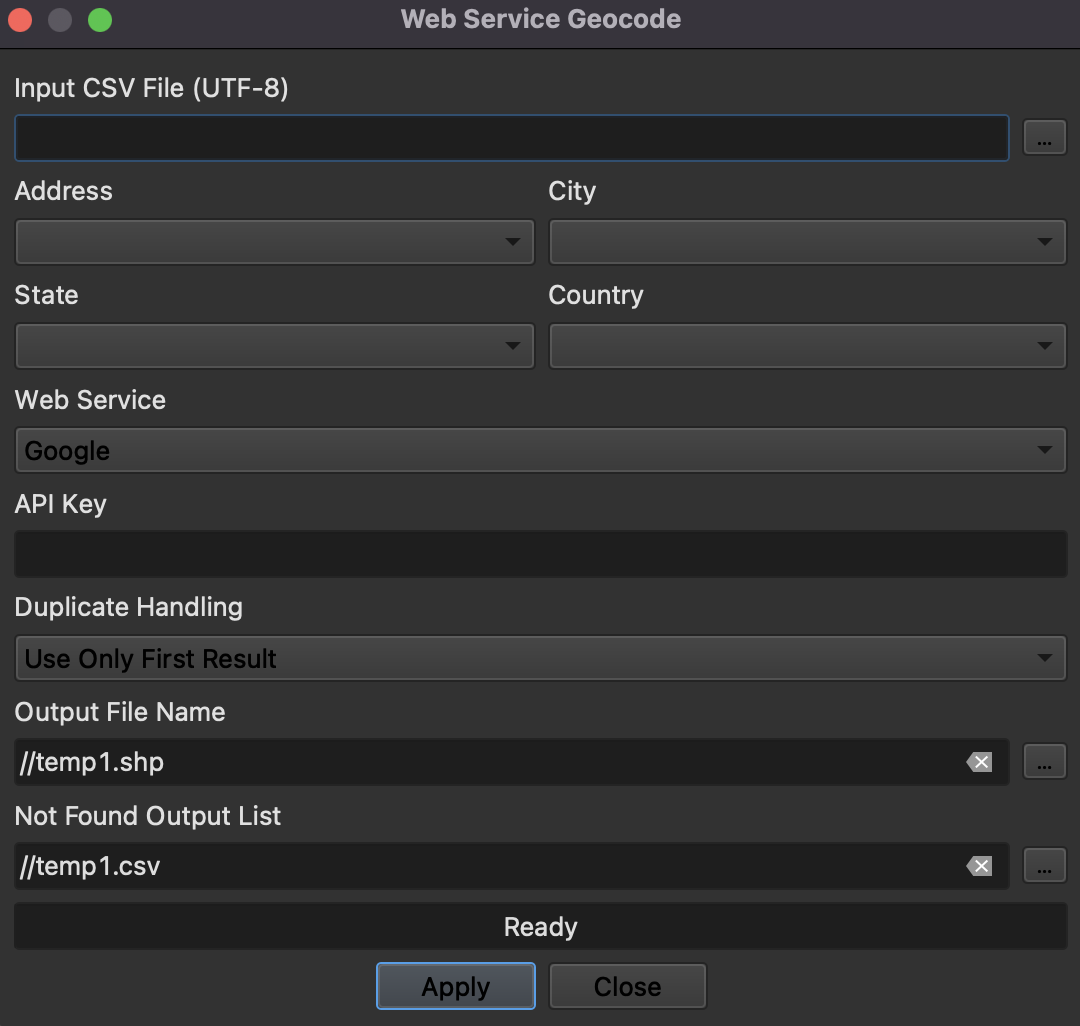
Click the little backspace arrows in the fields for “Output File Name” and “Not Found Output List.” This will make placing the output files in your workspace much easier.
Now fill out the parameters as in the image below, taking care to…
- Click the backspace buttons highlighted in yellow to remove the default file paths before you
- Click the ellipses highlighted in red to select
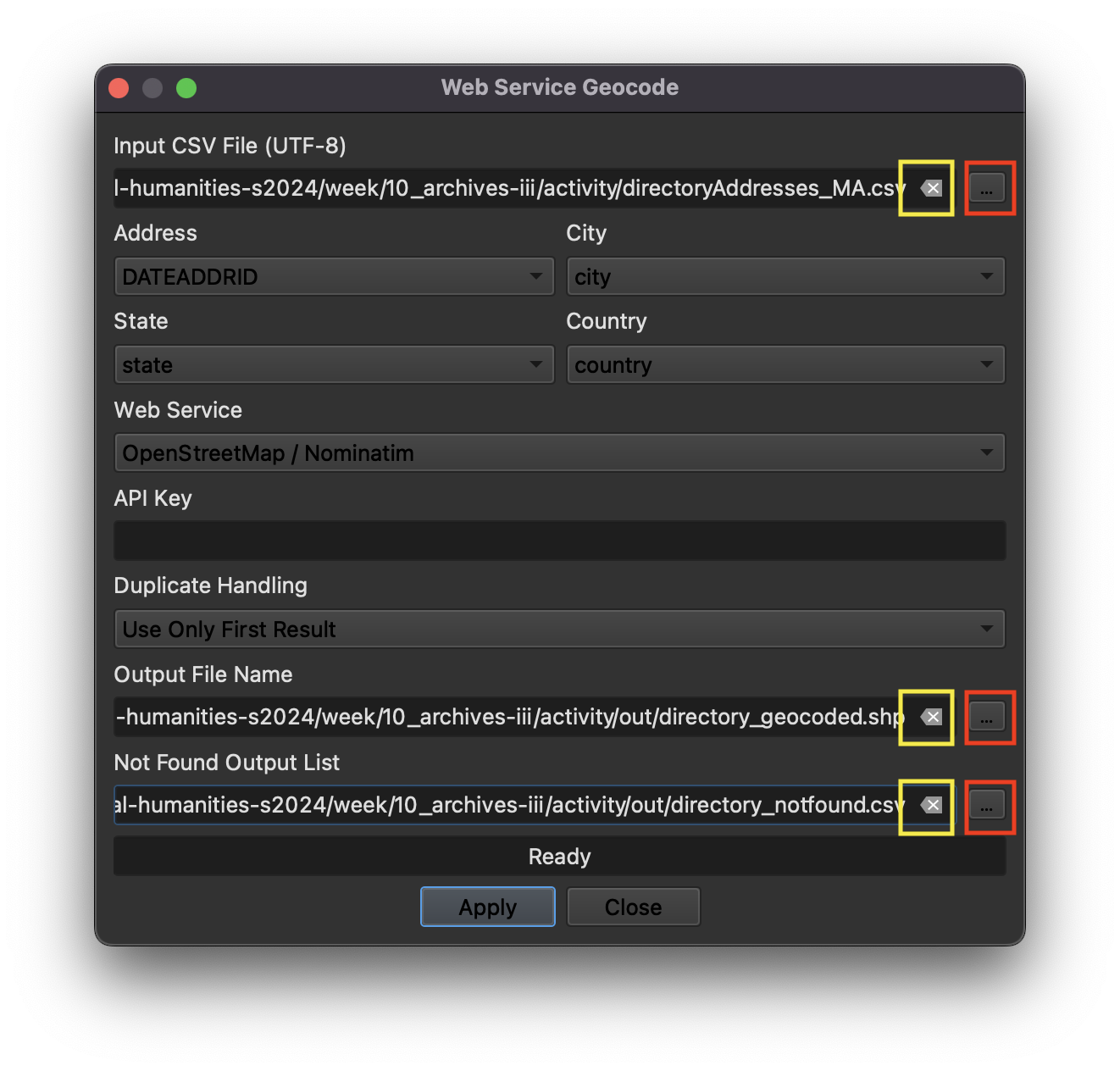
… and before you click “Apply,” make sure that the “Web Service” parameter is set to OpenStreetMap / Nominatim!
Before you click “Apply,” note that it’s probably going to take at least 15-30 minutes to fully geocode this query. It’s not a fast tool. Only run it when you have time to let it run fully.
When you’re ready, click “Apply,” and wait…

When it’s done, your geocoding dialog should see something like this:
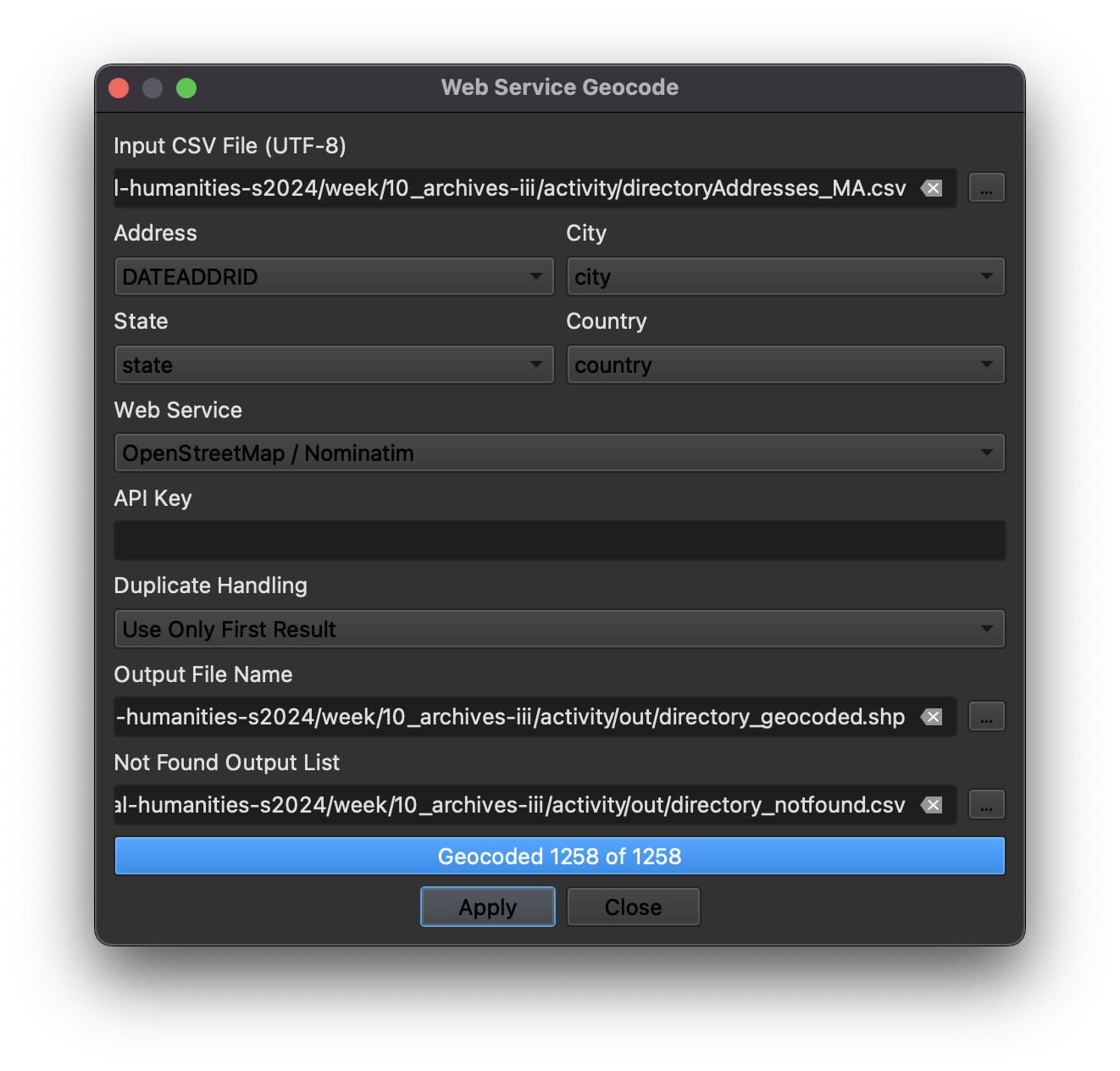
100% of the records should successfully geocode. Let’s exit this dialog box and go back to the map. “Right-click” the layer in your layers list—mine is titled directory_geocoded—and click “Zoom to Layer(s).” You should see something like this:
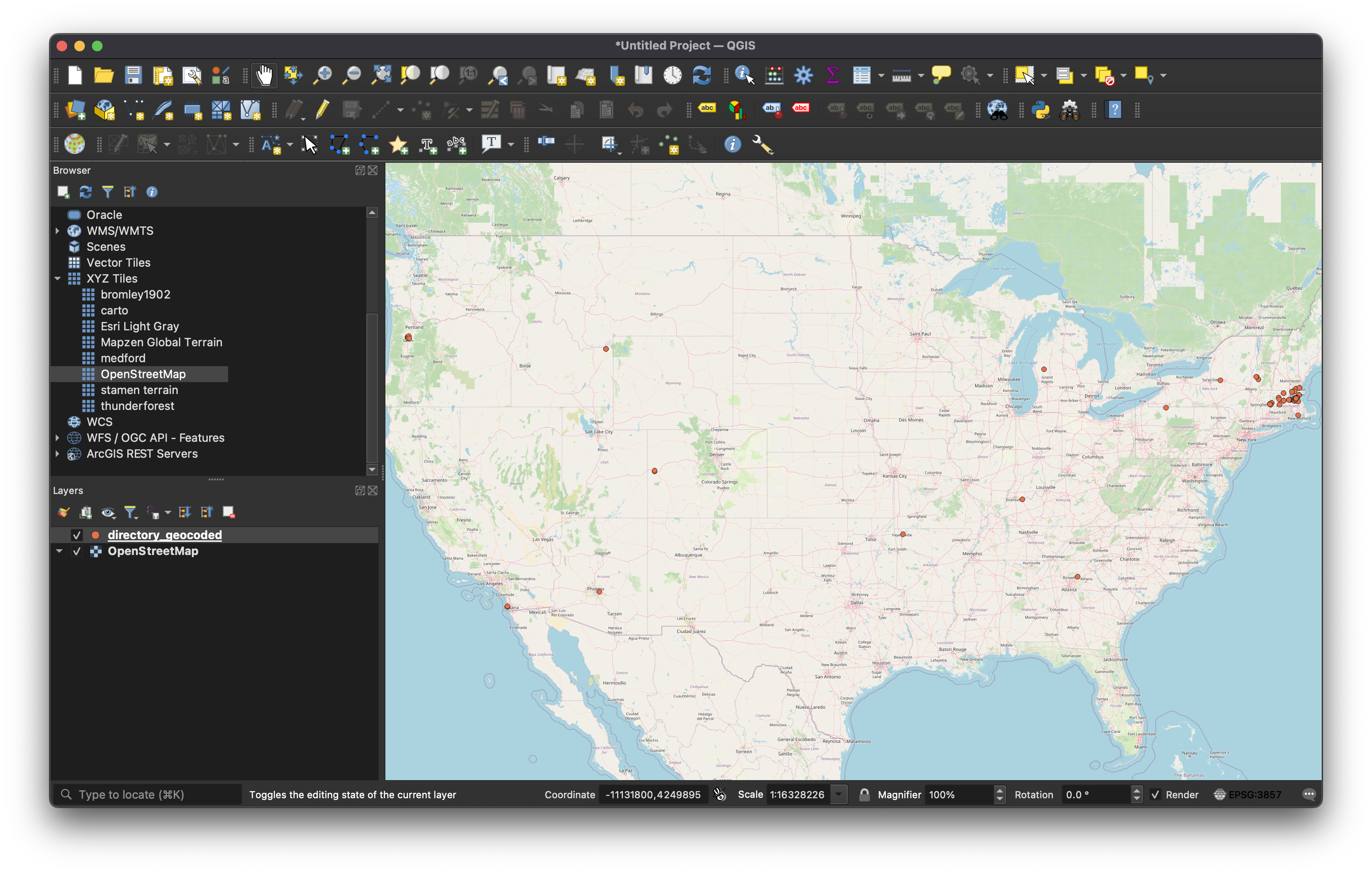
Hmmm… why did a bunch of these layers end up outside of Massachusetts?
Natural language processing “by hand”
We’re not actually going to do any computational natural language processing (NLP) in this class, but if you think about it, geocoding is itself a kind of NLP: we’re taking descriptive address data, “tokenizing” it into discrete parts, and passing that through an algorithm that can recognize those parts and assign them to places in the real world.
To wrap up this activity, I want you to do some natural language processing, but “by hand.” By this, I mean you are going to manually look through the attribute table of the geocoded data and figure out why some things ended up in places where they weren’t supposed to. This is exactly the kind of work that NLP can automate, but for now, you’re going to do a snippet of it manually.
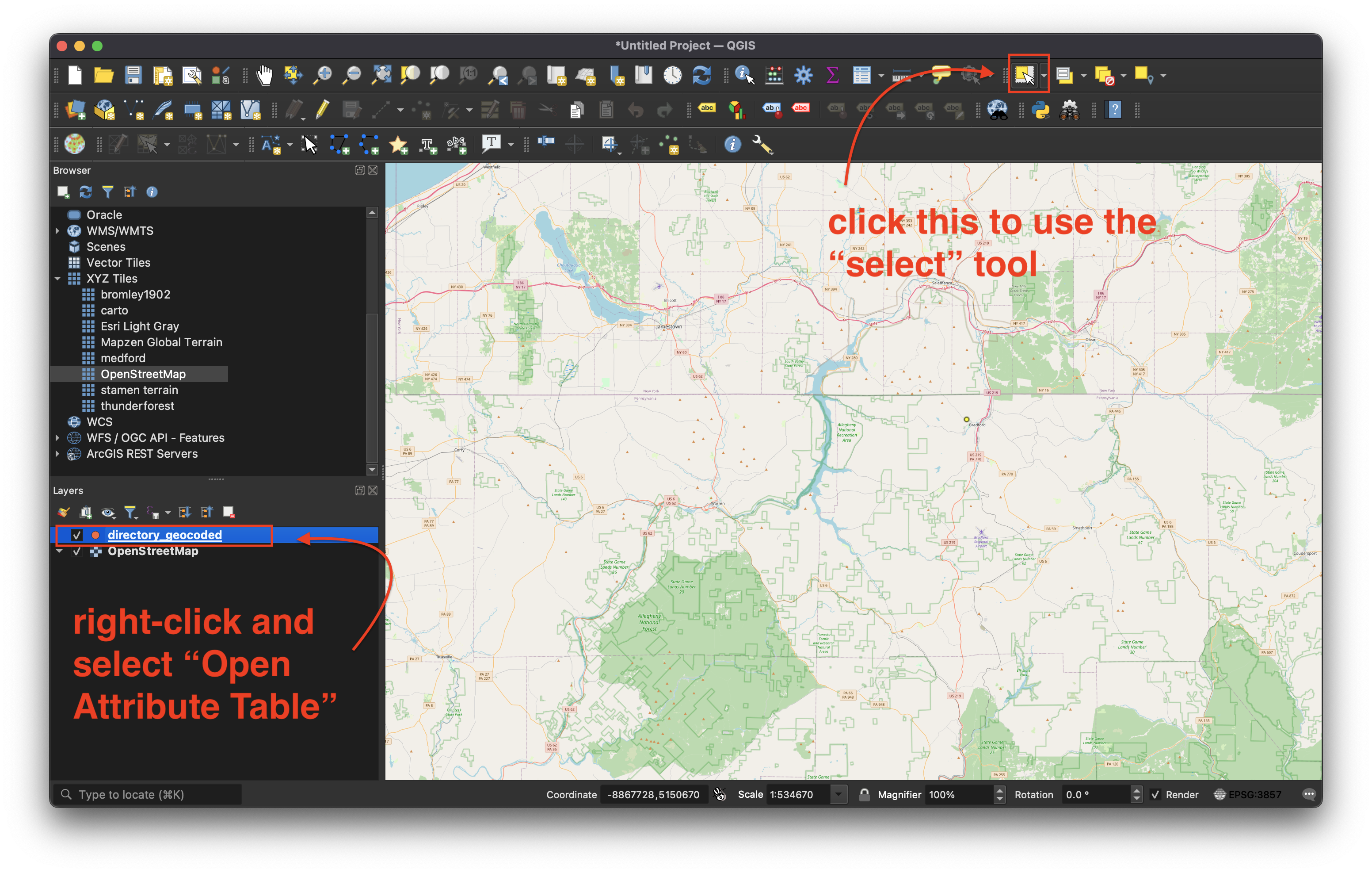
To accomplish this, you’ll need to use the selection tool and the attribute table. Both of these should feel familiar, but in QGIS, they’re just in slightly different places:
Q1
Pick three addresses from your geocoded layer and try to figure out why OSM couldn’t match them to their expected geography in Massachusetts. Does the historical address, as it’s listed in the source spreadsheet, still exist? Has the address possibly changed? To figure this out, I recommend searching for the addresses as they appear in the attribute table in Google Maps. You can also try going to OSM and navigating to where you would expect that address to appear. See if you can determine why it didn’t join, and for each record, explain why you think it didn’t match, and how you think you might fix it. (These answers might be similar for multiple addresses.)
Table join to your geocoded layer
In your workspace, you should have a secondary table that you could join to the geocoded layer based on a common field.
Before trying to join anything, make sure that you save the xlsx file as a csv file. csv files behave better with QGIS.
Table joins in QGIS are pretty easy. Try following this tutorial to join the 1-heading.csv layer to your geocoded data.
You should be able to identify the common field required for the join by comparing the attribute table of your geocoded layer with the 1-heading.csv spreadsheet.
Symbolize your data
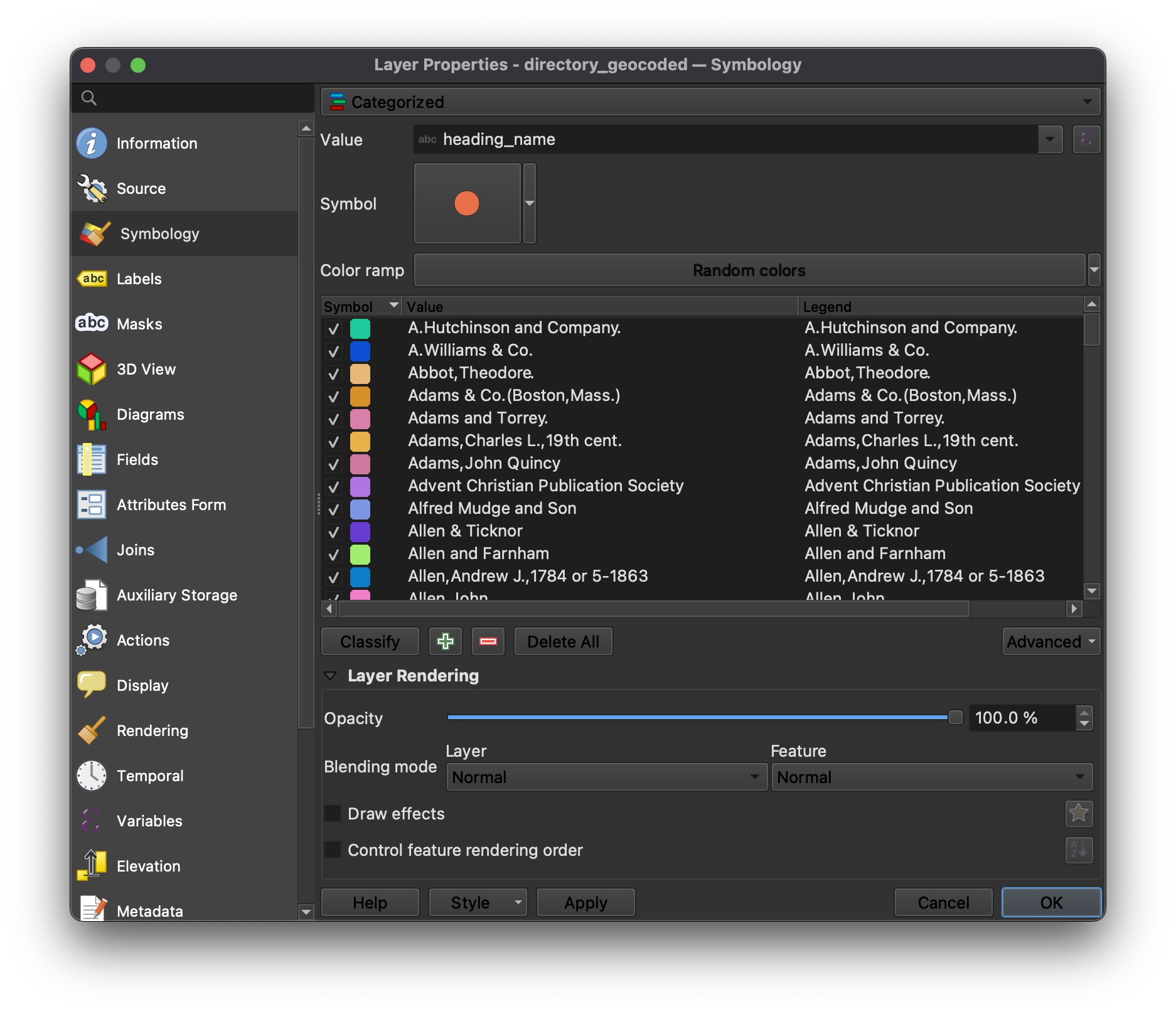
To wrap up, try symbolizing your data. It’s similar in QGIS to how you’d to it in ArcGIS Pro.
- Right-click on the geocoded layer in your layers list
- Click on the “Symbology” tab on the left-hand side
- Pick “Categorical”
- Set the value to
heading_name - Click the symbol and make it bigger—maybe
4.0in size - Use a “Random color” ramp
- Click “Classify” just below the ramp
- When you’re done, click “OK” in the bottom right-hand corner of the Symbology dialog
Q2
Take a screenshot of your QGIS application, with geocoded, symbolized data.
Questions and deliverables
| Assigned | Due | Submit |
|---|---|---|
Apr 7, 2026 |
Apr 14, 2026 |
For this activity, your submission should include answers to the first question and a screenshot of your symbolized, geocoded data: