Parking lot cemeteries in ArcGIS Pro
This page provides basic information and links required to select a city and download maps for Assignment 03 using ArcGIS Pro. If you want to use maps from OldInsuranceMaps for this assignment, follow instructions in the OldInsuranceMaps tutorial.
Step 1: Get maps
From the Library of Congress, download at least four Sanborn maps from an atlas of your choosing.
Don’t just pick an arbitrary area—you should choose four maps that cover an area where modern parking lots exist. To get you started, you could compare the index plate of your chosen atlas with this map from Parking Lot Reform. In the example below, I compared the two maps for Richmond, Virginia, and determined that plates 8, 9, 49, and 50, would be suitable, because they contain numerous modern-day parking lots:
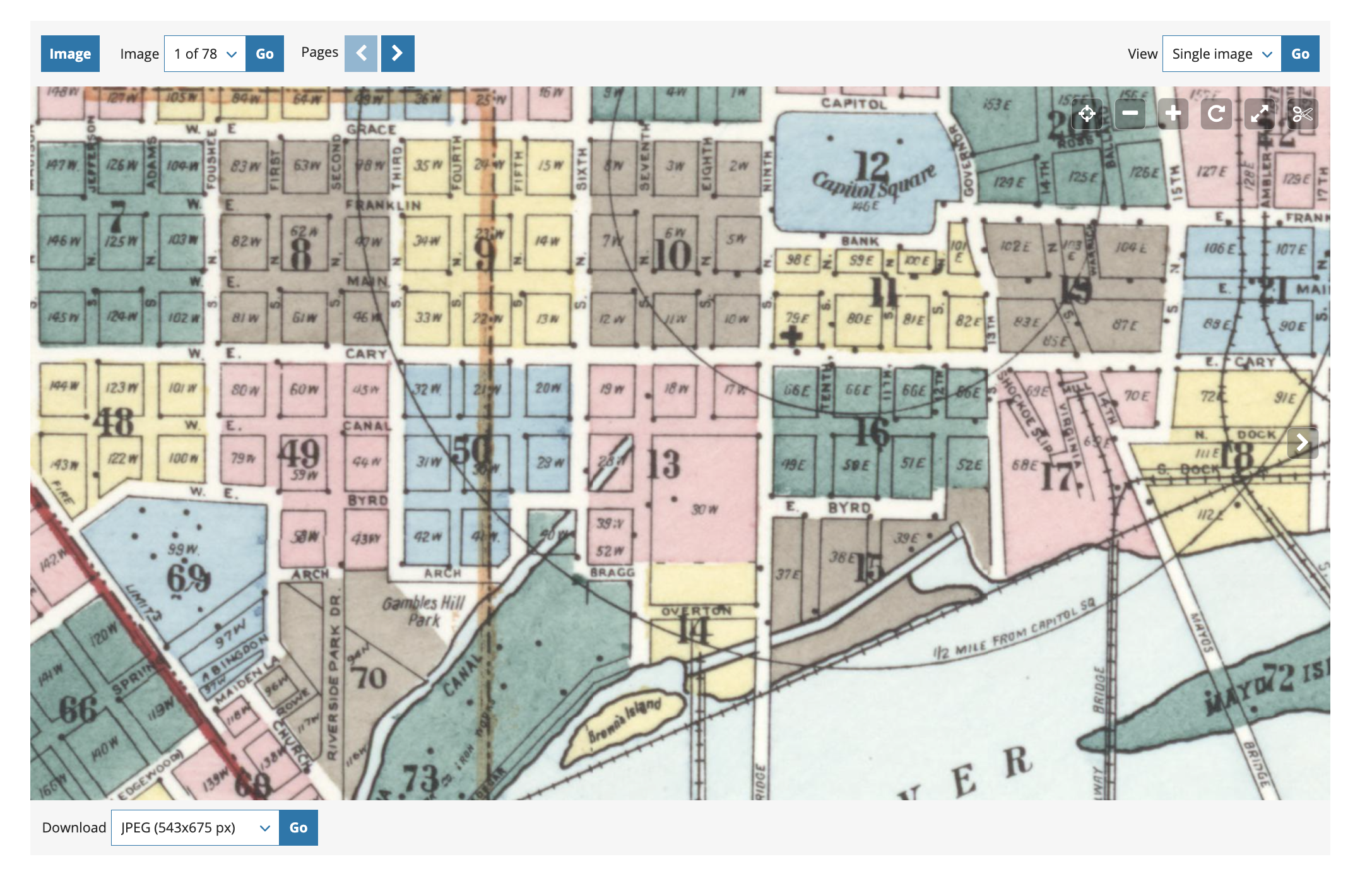
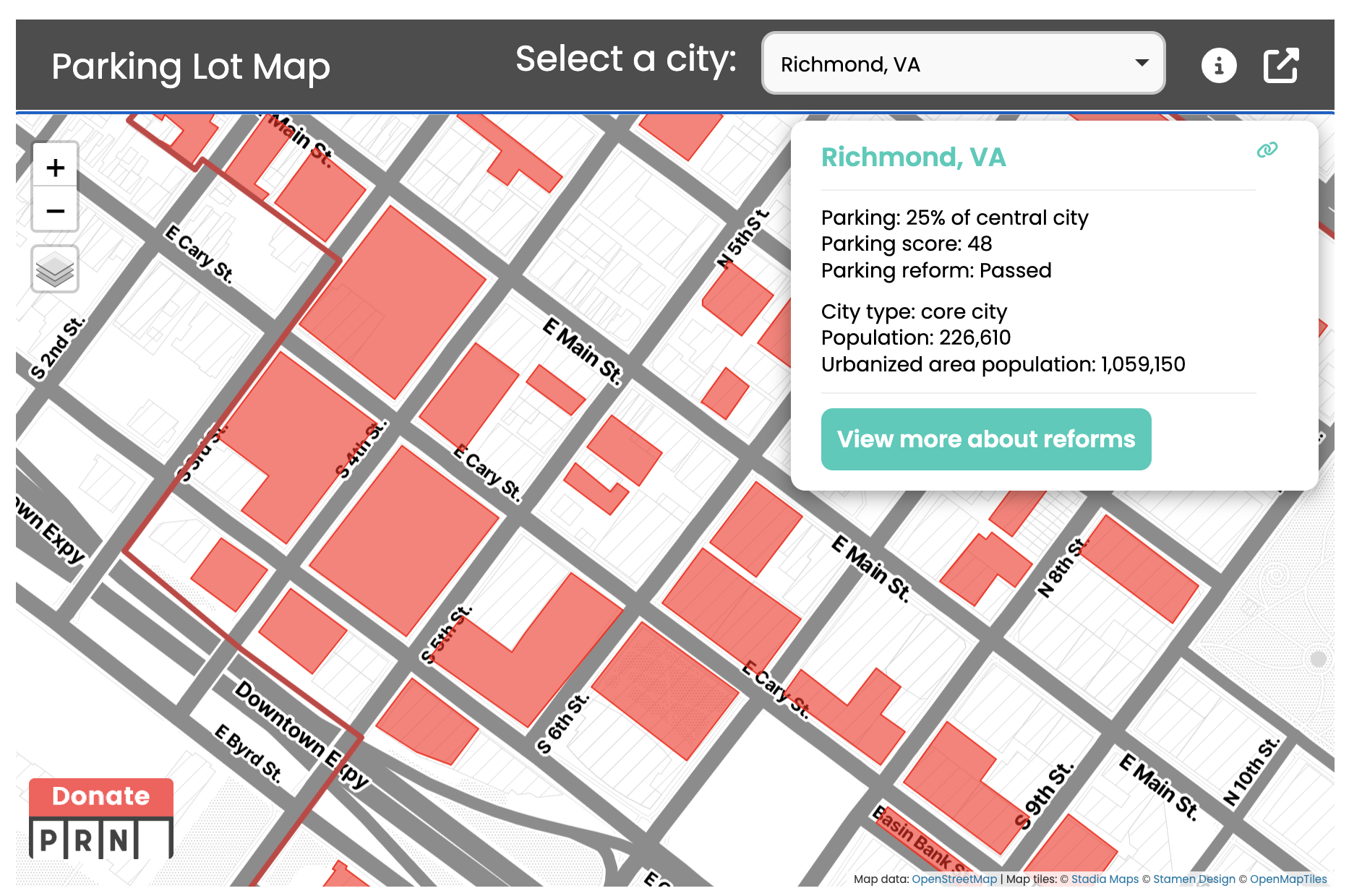
The maps (or “plates” in the parlance of urban atlases) that you choose should adjoin one another—e.g., you shouldn’t pick four disconnected plates from across the whole city.
When you’re ready, download the maps as TIFF files from the Library of Congress:

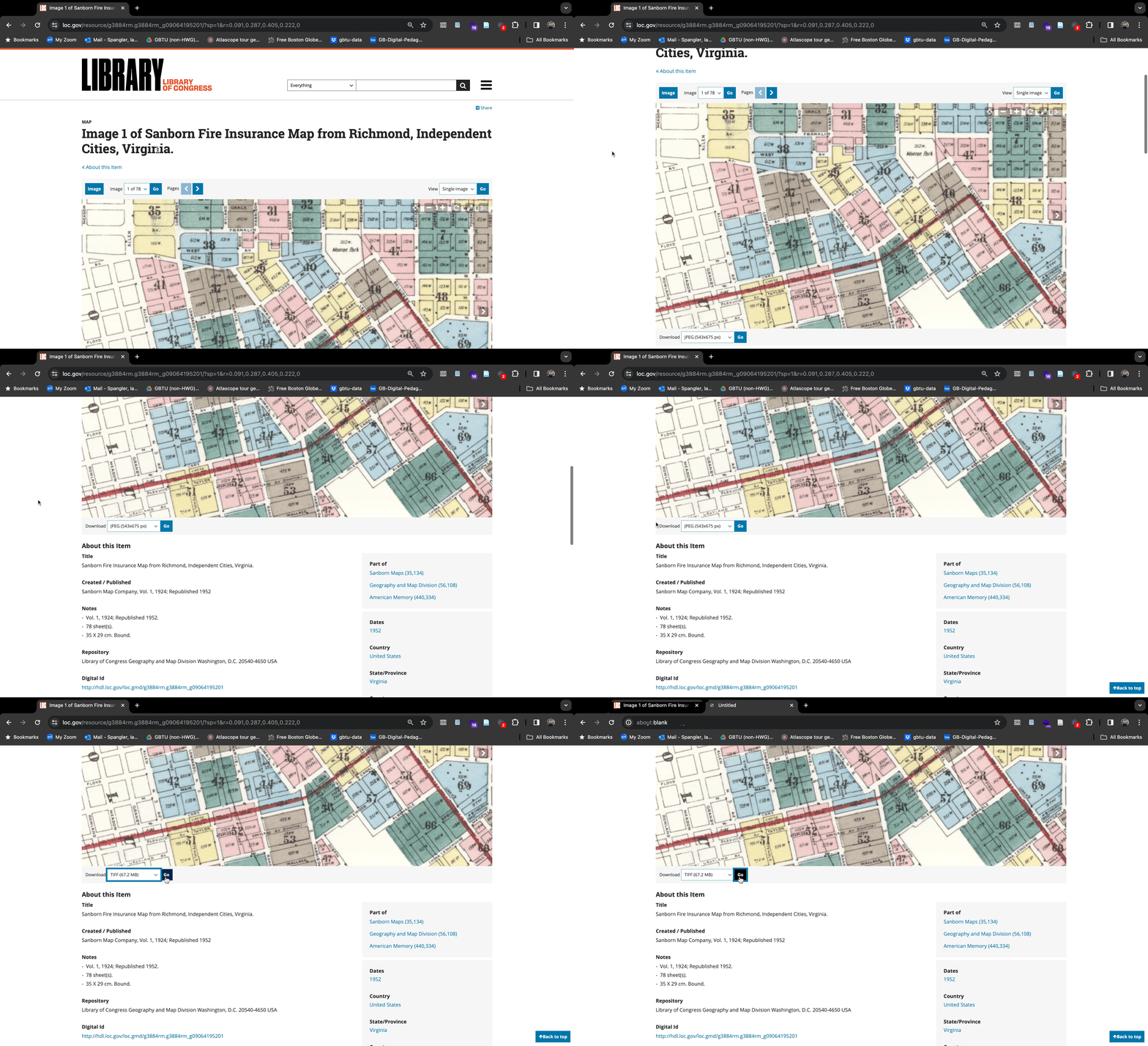
Sometimes the Library of Congress website can be a little slow. This is primarily because AI scraping bots are breaking libraries’ digital collections. If you bump into issues, just be patient (and take this into consideration when you are working on the assignment).
Step 2: Georeference 🌎
Use this guide as a starting point for how to georeference maps using ArcGIS Pro. Street corners will be your most reliable control points!
When you’re georeferencing a map, you define its location according to the coordinate system of the map frame. So, you want to make sure that you’re saving the georeferenced layer in the same coordinate system of the map frame. For your urban atlases, follow Bill Rankin’s advice: just use the “evil Mercator projection.”
Before you proceed to the next step in Assignment 03, ensure you have at least 4 georeferenced GeoTIFFs for your city loaded in ArcGIS Pro. They should form a continuous area!